Menu Reference
The features of VRCQuestTools are available from "Tools" → "VRCQuestTools" in the menu bar. Some features are also available from the "VRCQuestTools" menu shown by right-clicking an avatar in the Hierarchy.
Setup Avatar for Mobile
Opens the window to convert an avatar for Mobile. See Convert Your Avatar for the usage.
Remove Unsupported Components
Removes components which can't be used on Mobile (Dynamic Bone, Cloth, Camera, Light, Audio Source, Rigidbody, Collider, Constraints, and so on) from the selected avatar. The target components are listed before the removal.
Remove Missing Components
Removes "Missing" components (components whose scripts can't be found) from the selected avatar. Use it when you open an avatar containing Dynamic Bone in a project without Dynamic Bone, for example.
Remove All Vertex Colors
Removes vertex colors from all meshes of the selected avatar. The VQT Vertex Color Remover component is added to the avatar's objects.
Remove PhysBones
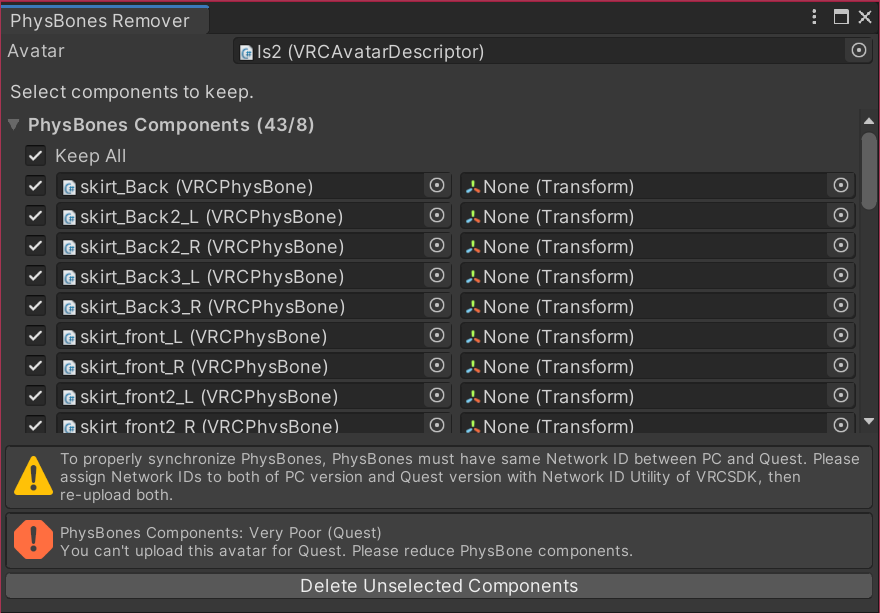
Lists the PhysBones, PhysBone Colliders, and Contacts of the selected avatar, and removes the checked ones. You can reduce the components while checking the Avatar Dynamics performance rank.
Migrate Legacy Avatar Dynamics Settings
Opens a window to migrate old-format Avatar Dynamics settings stored in a version 2.x VQT Avatar Converter Settings to the VQT Platform Component Remover component. It scans the project's Prefabs and scenes, and lists the avatars which still have old-format settings. Select the targets and press "Migrate Selected" to replace the settings with Platform Component Remover components while preserving which PhysBones, PhysBone Colliders, and Contacts are kept. See Migration Guide from Version 2.x to 3.0.0 for details.
Migrating a Prefab or an unloaded scene file writes the changes directly to the asset file, and Undo can't revert them. Before migrating, back up your project or make sure it is under version control.
BlendShapes Copy
Opens a window to copy blendshape (shape key) weights to another mesh. Specify the source and target Skinned Mesh Renderers, then press "Copy BlendShape Weights". Use it to carry blendshape weights such as body shape adjustments over to the converted avatar.
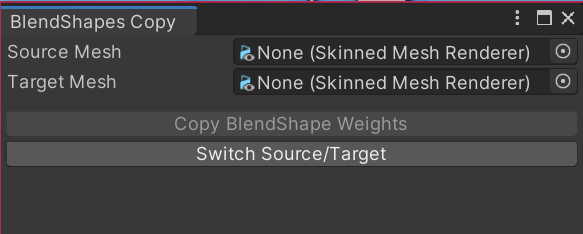
It is also available from the "Copy BlendShape Weights" context menu of Skinned Mesh Renderer components.
Metallic Smoothness Map
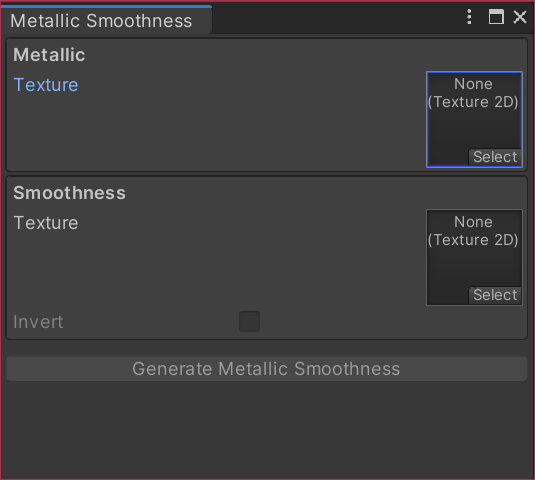
Opens a window to generate a Metallic Smoothness map for the Standard Lite shader from a Metallic map and a Smoothness (or Roughness) map.
Unity Settings for Mobile
Opens a window to check the recommended Unity settings for working with Mobile. You can check whether Android Build Support and iOS Build Support are installed, and the Android texture compression setting. See Set up Environment for details.
Clear Texture Cache
Deletes the cache of textures generated by material conversion. The cache is used to speed up texture regeneration, and it is rebuilt at the next conversion after deletion. Use it when you want to free disk space or when generated textures have problems.
Settings
Toggles the behavior of VRCQuestTools.
- Enable Validation Automator: Automatically validates avatars in the scene and notifies you of problems.
- [NDMF] Enable Texture Format Check on Windows Build: Checks Windows builds for texture formats which can't be used on Mobile.
- Enable Debug Log: Outputs verbose debug logs to the Console for troubleshooting.
Languages
Switches the display language of VRCQuestTools. Auto (default), English, 日本語, and Русский are available.
Check for Update
Checks whether a new version is available.
Help
Opens this documentation site in the browser.
Hierarchy Context Menu
The "VRCQuestTools" menu shown by right-clicking an avatar also has NDMF items.
- [NDMF] Manual Bake with Mobile Settings: Creates a copy of the avatar converted with the Mobile settings in the scene.
- [NDMF] Build and Test for PC with Mobile Settings: Locally tests the avatar converted with the Mobile settings in VRChat on PC. The VRChat SDK control panel must be open.