Convert Your Avatar
Add the converter settings to your avatar and make it ready to upload for Mobile. "Conversion" may sound like a big deal, but the first time only takes a few button presses.
Begin Converter Settings
- Select "Tools" → "VRCQuestTools" → "Setup Avatar for Mobile" from the menu bar.
- Select your avatar in the window.
- Press the "Begin Converter Settings" button.
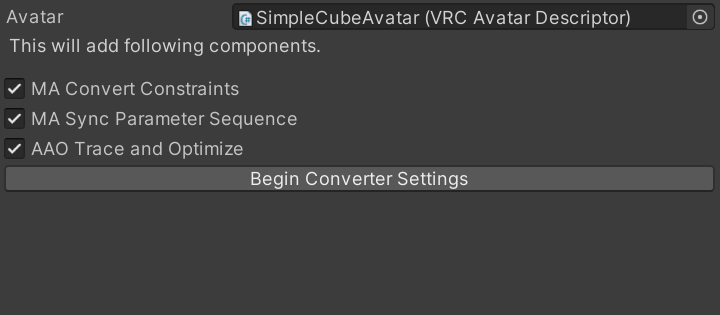
The VQT Avatar Converter Settings component is added to the avatar and the converter settings appear. When the project has Modular Avatar or Avatar Optimizer, you can also choose additional components to add with the checkboxes above the button.
The settings may look overwhelming, but you can convert the avatar with the defaults. If you want to change the conversion method per material or adjust texture resolutions, see the settings of VQT Avatar Converter Settings.
When Warnings Are Shown
Depending on the avatar, warnings appear in the settings. They are not errors. They tell you in advance what changes during the conversion, or what to finish before converting. Typical ones are:
- Removal of unsupported components: Components which can't be used on Mobile (such as Audio Source) are removed during conversion. After the conversion, check that the avatar's features still work.
- Dynamic Bone: VRCQuestTools does not convert Dynamic Bone to PhysBone. Convert them to PhysBones with the VRChat SDK feature beforehand.
- Avatar Dynamics performance: When there are too many PhysBones or Contacts, the components are removed even if the avatar can be uploaded. You need to reduce PhysBones.
Upload
To synchronize PhysBones between PC and Mobile, the same avatar must be uploaded to both platforms. Before uploading for Mobile, upload the avatar with the converter settings added for PC.
The following steps depend on whether you use the automatic conversion on upload. With the automatic conversion, no copy of the avatar is created, so you don't need separate scenes or avatars for PC and Mobile. When you use non-destructive tools such as Modular Avatar, they are processed together on upload, so they combine correctly. If you are unsure, we recommend the automatic conversion.
The automatic conversion requires NDMF in your project. If you use Modular Avatar, NDMF is already included in your project.
Converting Automatically on Upload (Recommended)
The avatar is automatically converted on upload. You keep the same operations as a usual PC upload and only switch the platform.
- Open the VRChat SDK control panel and select your avatar in the "Builder" tab.
- Select Windows and Android in "Platform(s)".
- Upload the avatar with the "Multi-Platform Build & Publish" button.
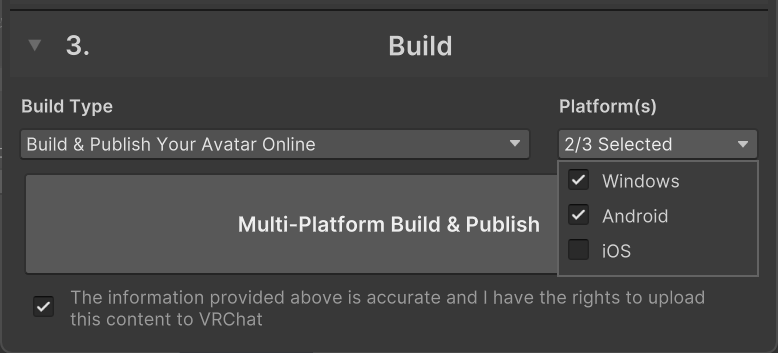
The same avatar is uploaded to both PC and Android. The automatic conversion happens only in the Android build. VRChat can hold different avatar data for each platform: players on PC see the avatar before the conversion, while players on Android see the converted one.
To upload for the iOS version of VRChat as well, also select iOS in "Platform(s)". Switching the platform to iOS requires iOS Build Support.
Converting Manually
Create a converted copy of the avatar with "Manual Conversion", then upload it.
Manual conversion does not consider non-destructive components other than MA Merge Animator. On avatars using non-destructive tools such as Modular Avatar, unexpected issues may arise in the behavior after combining. In that case, use the automatic conversion on upload.
- Press the "Convert" button in the converter settings.
- After the conversion, a copy named "(avatar name) (Mobile)" is created in the scene. The copy is placed a little away from the original avatar so they don't overlap.
- Switch the platform to Android (or iOS for the iOS version) in the VRChat SDK control panel.
- Upload the converted copy with the same Blueprint ID as the original avatar.
Materials and textures generated by the conversion are saved in the folder shown as "Folder to Save".
Next Step
The upload is done, but the converted avatar does not necessarily look the same as the PC version. Before and after the upload, we recommend to check the converted avatar.