Troubleshooting
This page lists common problems and solutions. If your problem is not listed here, please report it on GitHub Issues.
Appearance Problems
The brightness of the converted avatar differs from the PC version
Mobile shaders have different lighting from PC shaders, so the impression of brightness changes depending on the world.
When converting with Toon Lit, you can adjust it with "Brightness" in the material conversion settings. Because the Toon Lit shader is brightened by ambient light, the default is 0.83.
Expressions using transparency (blushing etc.) look wrong
Mobile shaders don't reproduce texture transparency. Expressions which depend on transparency, such as blushing or glasses lenses, can't be reproduced as they are.
There are several workarounds:
- Edit animations to hide meshes which don't have to be displayed.
- Remove the objects on Mobile with VQT Platform Component Remover or VQT Platform GameObject Remover.
- Edit the meshes or textures for Mobile.
When blushing and similar expressions turn into opaque solid colors (called "nori" in Japanese), the following tools also work around it if they support your avatar.
- NoriBlocker: Overrides the expressions which become solid colors with animations so that they are not displayed.
- 海苔はずシート & 海苔む~ば~: Removes the meshes of the parts which become solid colors.
Check each distribution page for the list of supported avatars.
For avatars created with VRoid Studio, also see Eyebrows and eyelashes look like squares.
Eyebrows and eyelashes of a VRoid Studio avatar look like squares
Avatars created with VRoid Studio express eyebrows and eyelashes with meshes using transparent textures. Mobile shaders don't render transparency, so after the conversion the transparent parts remain as opaque faces and the eyebrows and eyelashes look like squares.
Using "YM Mesh Trimmer" in Yoridori Modifiers works around this by trimming the mesh along the transparency of the texture.
Reproducing transparency such as blushing with a particle shader
Particle shaders such as "VRChat/Mobile/Particles/Additive" are known as a way to express transparency, like blushing, on Mobile. VRCQuestTools doesn't recommend this way, and there is no plan to provide a conversion of avatar materials into particle shaders.
- The VRChat documentation describes these shaders as "Should be used on particles."
- Rendering transparency (alpha blending) is expensive on mobile GPUs, and the Meta documentation also advises against excessive use.
Conversion into particle shaders is provided only for materials which already use a particle shader, and for materials used by particle systems, Trail Renderers and Line Renderers.
A warning about unsupported shaders is shown
Material conversion supports the following shaders.
- Standard
- Unity-Chan Toon Shader 2 (UTS2)
- arktoon-Shaders
- ArxCharacterShaders (AXCS)
- Sunao Shader
- lilToon
- Poiyomi
Textures may not be generated correctly for materials using other shaders. In that case, try the following:
- Turn off "Generate Textures for Mobile" to change only the shader.
- Prepare your own material for Mobile and replace with it using "Material Replacement" or VQT Material Swap.
The inside of skirts and similar parts becomes invisible
Toon Lit doesn't render the backfaces of polygons. Toon Standard can render them, but the conversion makes the material double-sided only when converting from lilToon or Poiyomi materials. In that case, the double-sided setting of the original material is kept.
For other shaders, and when you convert with Toon Lit, you can display them by making the mesh double-sided with VQT Mesh Flipper.
Generated textures are outdated or wrong
Textures generated by material conversion are cached. Delete the cache with "Tools" → "VRCQuestTools" → "Clear Texture Cache" in the menu bar, then convert again.
Upload Problems
Can't switch the platform to Android or iOS
Switching to Android requires the Android Build Support module, and switching to iOS requires the iOS Build Support module. Install them with the steps in Set up Environment. If you can't install them from Unity Hub, use the installers from the Unity Download Archive.
The performance rank is Very Poor
You can still upload avatars with the Very Poor performance rank for Mobile. However, other players see an impostor or your fallback avatar by default. The actual avatar is displayed when a player individually allows it with "Show Avatar".
The Avatar Dynamics performance rank is Very Poor
When there are too many PhysBones or Contacts, all PhysBones and Contacts are removed in VRChat even if the avatar can be uploaded. Reduce the components so that the Avatar Dynamics performance rank fits within Poor.
- With avatar conversion: Select the components to keep in "Avatar Dynamics Settings" of VQT Avatar Converter Settings.
- Without avatar conversion: Select the components to remove with "Tools" → "VRCQuestTools" → "Remove PhysBones" in the menu bar.
Synchronization Problems
Gimmicks and outfits are in a different state on PC and Mobile
To synchronize parameters across platforms, VRChat requires the synced parameters to be placed at the beginning of the Expression Parameters in the same order. When the order differs between PC and Mobile, values go into other parameters and the state of outfits and gimmicks doesn't match.
Adding "MA Sync Parameter Sequence" of Modular Avatar to the avatar adjusts the order so that it is the same across platforms. Select the platform to use as the reference (Primary Platform) and upload that platform first. When you use Modular Avatar 1.16.0 or later, VQT Avatar Converter Settings shows a warning to add this component when it is missing.
For details, see Sync Parameter Sequence of Modular Avatar.
PhysBone synchronization is off between PC and Mobile
The state of a PhysBone is synchronized by identifying it with its network ID. When the IDs don't match between the PC and Mobile versions, grabbing a PhysBone moves a different bone on the screens of players on the other platform.
To synchronize PhysBones correctly, they must have the same network IDs on the PC and Mobile versions.
Enable "Assign Network IDs" of VQT Avatar Converter Settings, or attach VQT Network ID Assigner to the avatar. Then upload both the PC and Mobile avatars again to synchronize them.
When you reduce PhysBones for Mobile, they may not be synchronized correctly if one GameObject has multiple PhysBones.
Errors and Warnings
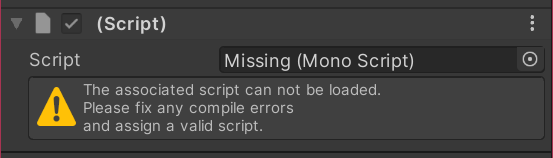
"Missing" components are reported
Check whether you forgot to import some assets or packages. This also happens when you open an avatar containing a paid asset such as Dynamic Bone in a project without that asset.
If the components are not needed, you can remove them with "Tools" → "VRCQuestTools" → "Remove Missing Components" in the menu bar.
A warning about Dynamic Bone is shown
VRCQuestTools does not convert Dynamic Bone to PhysBone. Before converting the avatar, migrate to PhysBones with "VRChat SDK" → "Utilities" → "Convert DynamicBones To PhysBones" or other means.
A warning about Unity Constraints is shown
Unity's standard Constraint components can't be used on Mobile and are removed during conversion. Migrating to VRChat Constraints makes them available on Mobile.
When the project has Modular Avatar, adding the "MA Convert Constraints" component to the avatar non-destructively converts Unity Constraints to VRChat Constraints at build time.
Can't convert the avatar in prefab mode
Avatars can't be converted in prefab mode. Exit prefab mode and go back to the scene before converting.
Mask texture errors are shown (Mesh Flipper)
- "Mask texture is missing": Set a texture to "Mask Texture" of VQT Mesh Flipper.
- "Mask texture must be readable": Enable "Read/Write" in the texture's import settings.
An unsupported texture format is reported
The avatar contains texture formats which can't be used on Mobile (PC formats such as DXT). If you use textures created by manual bake, run the manual bake again after switching the target platform.