Set up Environment
Before converting an avatar, install VRCQuestTools in your project and prepare Unity for Mobile.
Prerequisites
This documentation assumes a project which can already upload the avatar for PC. Create the project with VRChat Creator Companion (VCC) and set up your avatar in advance.
Install VRCQuestTools
- Open the Add to VCC page and add the repository to VCC.
- Open "Manage Project" for your project in VCC, then add "VRCQuestTools".
After the installation, "Tools" → "VRCQuestTools" appears in the Unity menu bar.
When the project has the Non-Destructive Modular Framework (NDMF) package, avatars can be automatically converted on upload without modifying the original. NDMF is available from bd_'s VPM repository. If you use Modular Avatar, NDMF is already included in your project.
Install Android Build Support
To upload avatars for Android, the Android Build Support module for Unity is required. Install it from Unity Hub with the following steps.
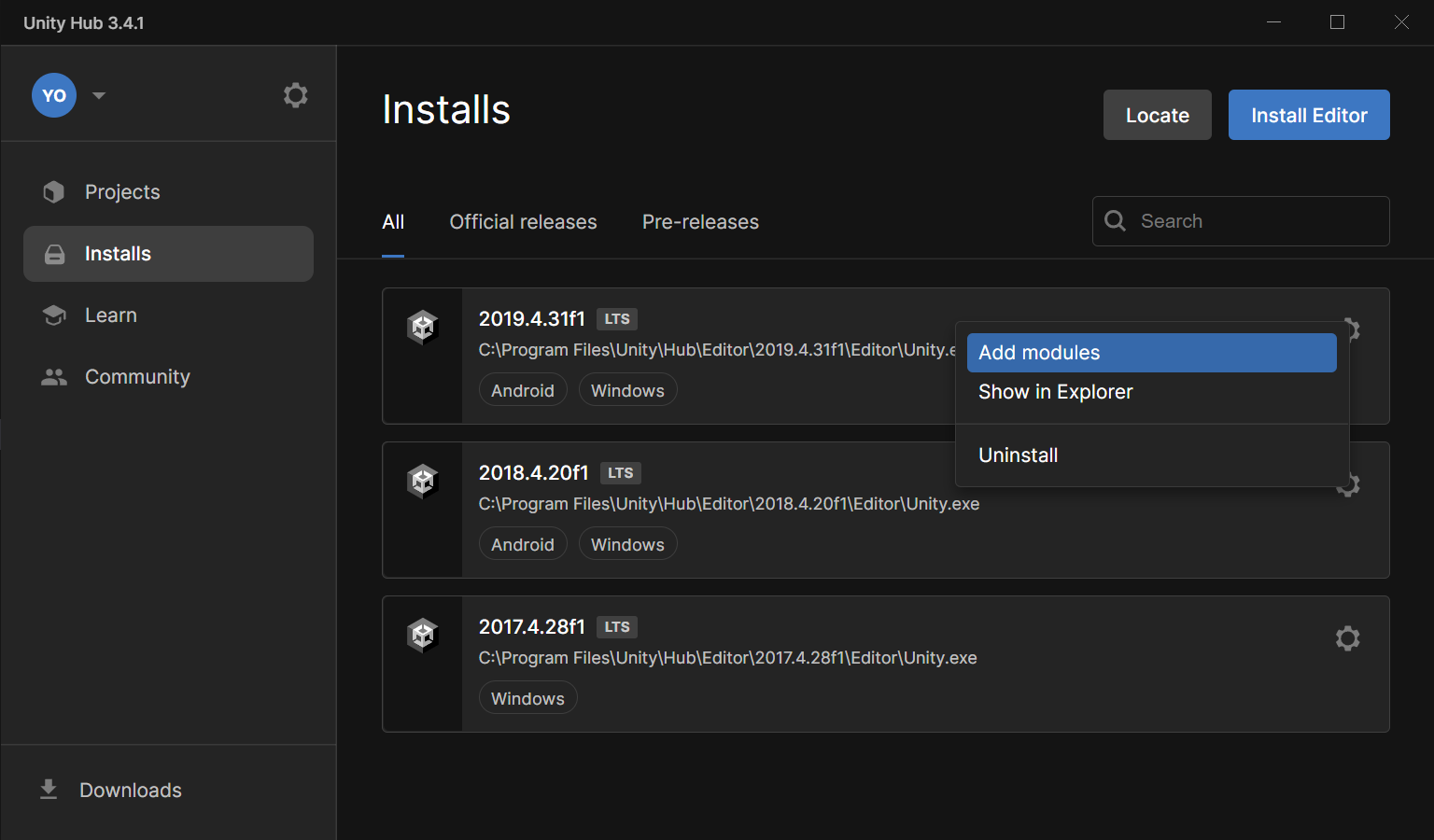
- Open "Installs" in Unity Hub.
- Select "Add modules" from the gear icon of the Unity version used by your project.
- Check "Android Build Support" and install it.
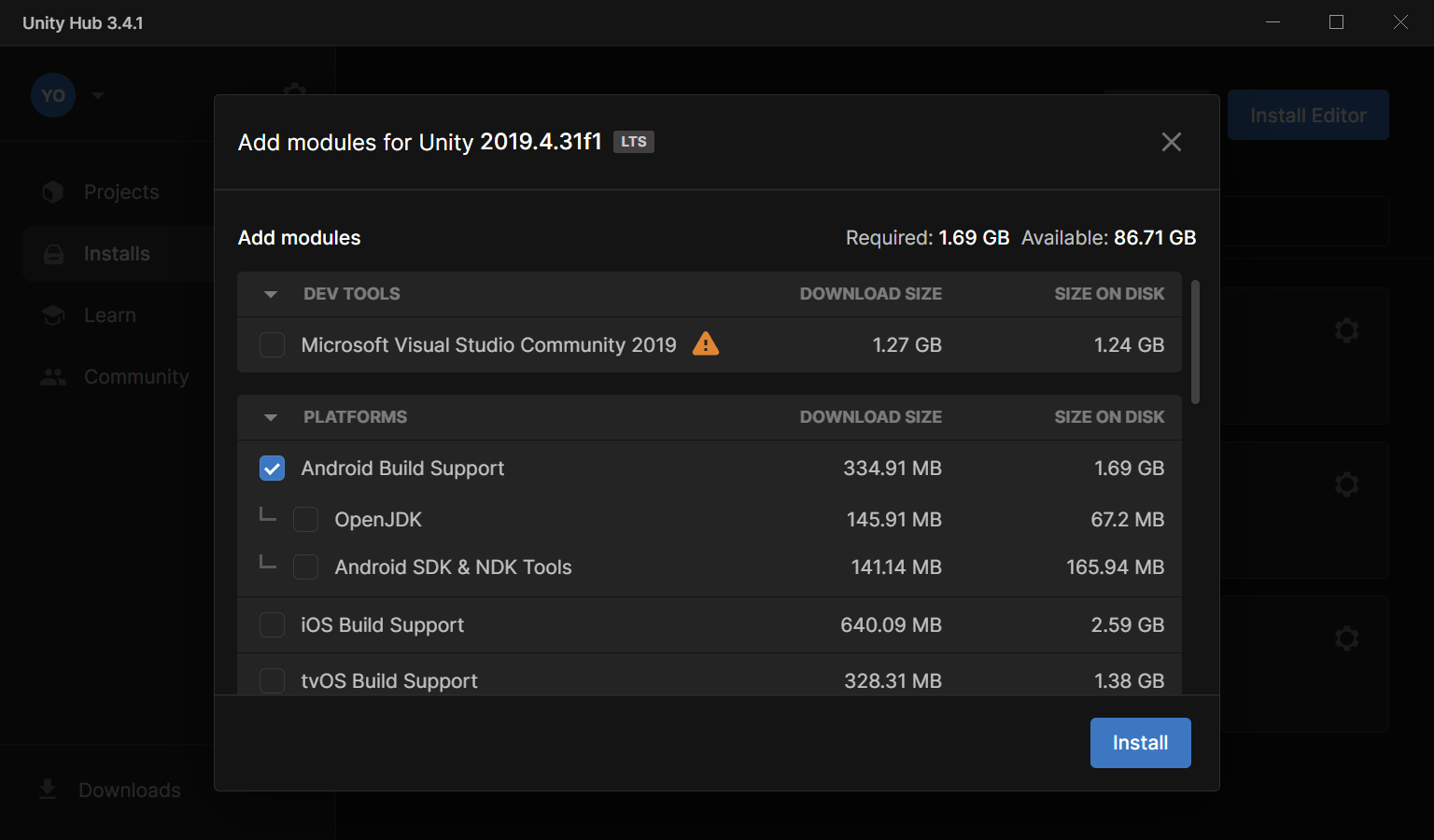
You don't have to check "OpenJDK". "Android SDK & NDK Tools" is usually not required either, but it is required to run a local test (Build & Test) on an Android device.
After restarting Unity, you can switch the platform to Android in the VRChat SDK control panel.
When You Can't Install from Unity Hub
If you can't install the module from Unity Hub, for example when it doesn't appear in the "Add modules" list, use the additional installer from the official Unity site.
- Select the same Unity version as your project (e.g. 2022.3.22f1) in the Unity Download Archive.
- Download "Android Build Support" from "Component installers".
- Run the downloaded installer and follow the instructions.
- Restart Unity Editor if it was running.
You can install iOS Build Support with the same steps (download "iOS Build Support" in step 2).
Install iOS Build Support (Optional)
To upload avatars for the iOS version of VRChat as well, the iOS Build Support module is also required. Install "iOS Build Support" from "Add modules" in Unity Hub, in the same way as Android Build Support.
After installing iOS Build Support, you can switch the platform to iOS in the VRChat SDK control panel.
Apply Recommended Unity Settings
Open "Tools" → "VRCQuestTools" → "Unity Settings for Mobile" from the menu bar to check the recommended settings for working with Mobile. This window also shows whether Android Build Support and iOS Build Support are installed.
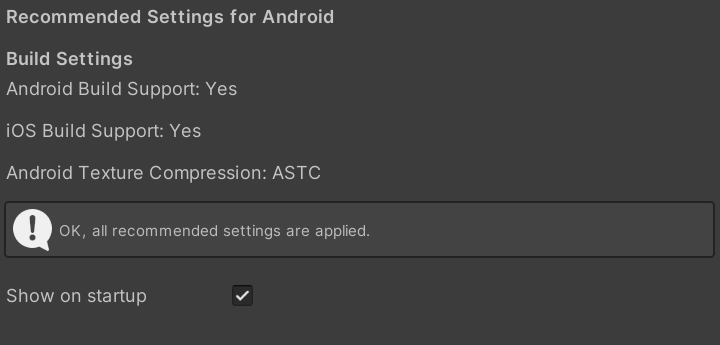
- Android Texture Compression: Using ASTC improves texture quality for Android in exchange for longer compression time.
Press "Apply All Settings" to apply the recommended settings at once.
Next Step
Once your environment is ready, continue to Convert Your Avatar.